How do I add sections and lessons to a 101 Course?
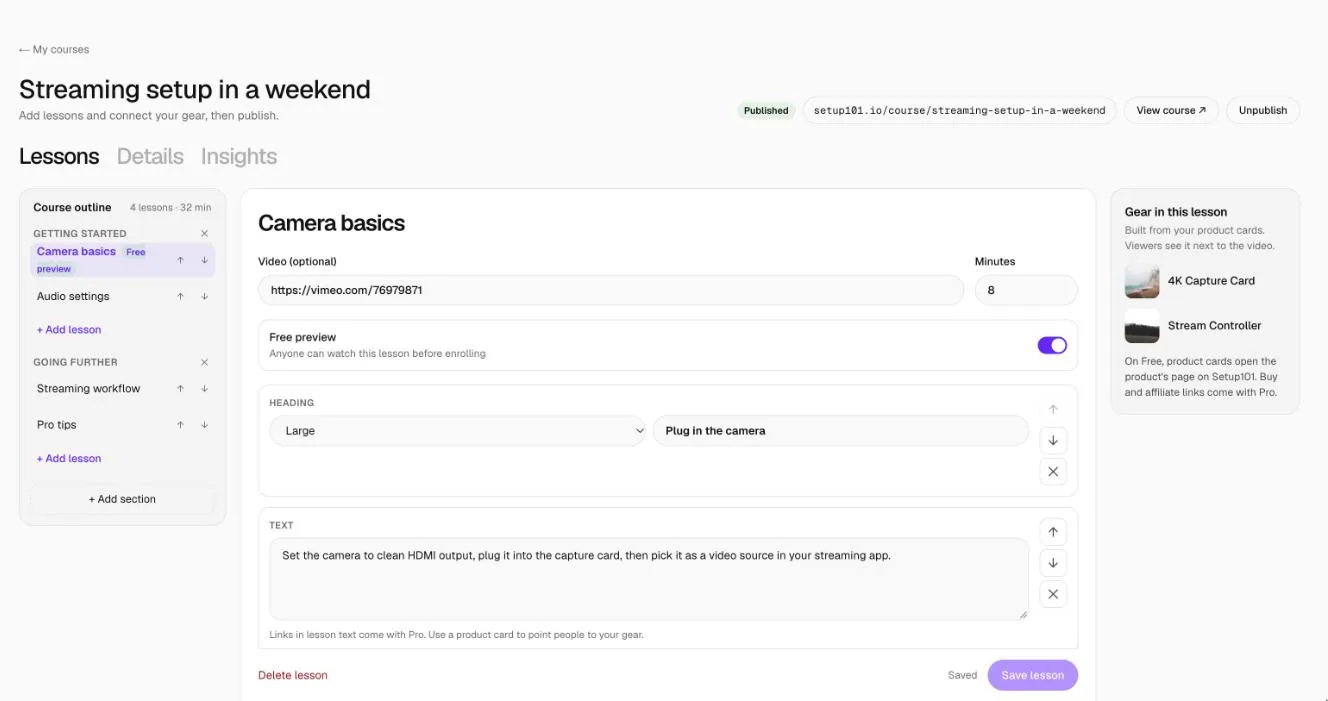
Open the course from 101 Courses and go to the Lessons tab. Use + Add section and + Add lesson in the Course outline, then write each lesson: an optional video link, the length in minutes, and content blocks. Click Save lesson when you're done.
Links inside lesson text need Pro or Pro Plus.
How to add a lesson
- Go to 101 Courses and open your course. The Lessons tab opens.
- In the Course outline, click + Add section to create a section (for example "Getting started"), then + Add lesson under it.
- Give the lesson a title.
- Video (optional): paste a link from YouTube, Vimeo, Loom or Wistia. It plays at the top of the lesson.
- Minutes: how long the lesson takes. This adds up to the course length people see.
- Add content with Add a block: Text, Heading, List, Quote, Code, Image, Video, Divider or Product card.
- Switch on Free preview if anyone should be able to watch this lesson without enrolling.
- Click Save lesson.
Use the arrows on each block to move it up or down, and the ↑ ↓ arrows next to each lesson in the Course outline to reorder lessons.
What can a lesson contain?
| Block | Use it for |
|---|---|
| Text | Paragraphs, with bold and italic |
| Heading | Breaking a lesson into parts (large, medium or small) |
| List | Steps or checklists, one item per line |
| Quote | A tip or something to remember |
| Code | Settings, commands or anything that should be copied exactly |
| Image | Screenshots and photos, with a caption |
| Video | A second video in the lesson body |
| Divider | A visual break |
| Product card | A product or app from your library (how) |
Lessons are text only: there's no HTML. A lesson can have up to 300 blocks, and a course up to 200 lessons in 30 sections.
FAQ
Can I add links in my lesson text?
On Pro and Pro Plus, yes. On Free, links in lesson text are removed when you save. Product cards still work on every plan.
Do changes go live straight away?
Yes, if the course is published. Saving a lesson updates it for everyone.
What's a free preview?
A lesson anyone can open before enrolling. Use it on the first lesson so people can see what they'll get.
Related
More in 101 Courses
- What is a 101 Course on Setup101?
- How do I create a 101 Course?
- How do I add product cards to a 101 Course lesson?
- How do I publish and share my 101 Course?
- How do I link a course I sell on Teachable or Udemy?
- How do I enrol in and take a 101 Course?
- How do I see who's taking my 101 Course?
- How do I edit, unpublish or delete a 101 Course?
- Which video sites can I use in a 101 Course?
Still stuck? Email support@setup101.co.