How do I add product cards to a 101 Course lesson?
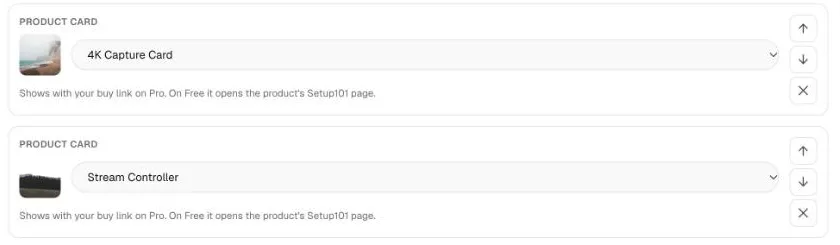
In a lesson, click Add a block and choose Product card, then pick a product or app from your library. The card shows the product's photo, name and price, and the product also appears under Gear in this lesson beside the lesson.
The card's buy button uses your buy or affiliate link on Pro and Pro Plus; on Free it opens the product's Setup101 page.
How to add a product card
- Open the lesson in the Lessons tab.
- Click Add a block → Product card.
- Click Pick a product or app from your library and choose one.
- Move the card to where it fits in the lesson.
- Click Save lesson.
The product must be in your library. Add a product first if it isn't.
What do learners see?
- The product card in the lesson, with a button. On Pro and Pro Plus it's your buy button (for example Buy), going to your buy or affiliate link. On Free it's View product, going to the product's page on Setup101.
- Gear in this lesson beside the lesson: every product carded in it.
- Shop this course on the course page: everything the course teaches.
Links that may earn you a commission are marked as such for learners.
Are product clicks tracked?
Yes. Every click is counted in your course's Insights. On Pro and Pro Plus you see clicks broken down by product and by lesson.
FAQ
Why does my product card say "View product" instead of Buy?
Buy and affiliate links are a Pro feature. On Free the card opens the product's Setup101 page instead. See buy links and affiliate links.
If I change a product's buy link, do I need to edit the lesson?
No. The card always uses the product's current link, so changing it once updates every lesson.
Related
More in 101 Courses
- What is a 101 Course on Setup101?
- How do I create a 101 Course?
- How do I add sections and lessons to a 101 Course?
- How do I publish and share my 101 Course?
- How do I link a course I sell on Teachable or Udemy?
- How do I enrol in and take a 101 Course?
- How do I see who's taking my 101 Course?
- How do I edit, unpublish or delete a 101 Course?
- Which video sites can I use in a 101 Course?
Still stuck? Email support@setup101.co.